Physical Address
304 North Cardinal St.
Dorchester Center, MA 02124
Physical Address
304 North Cardinal St.
Dorchester Center, MA 02124

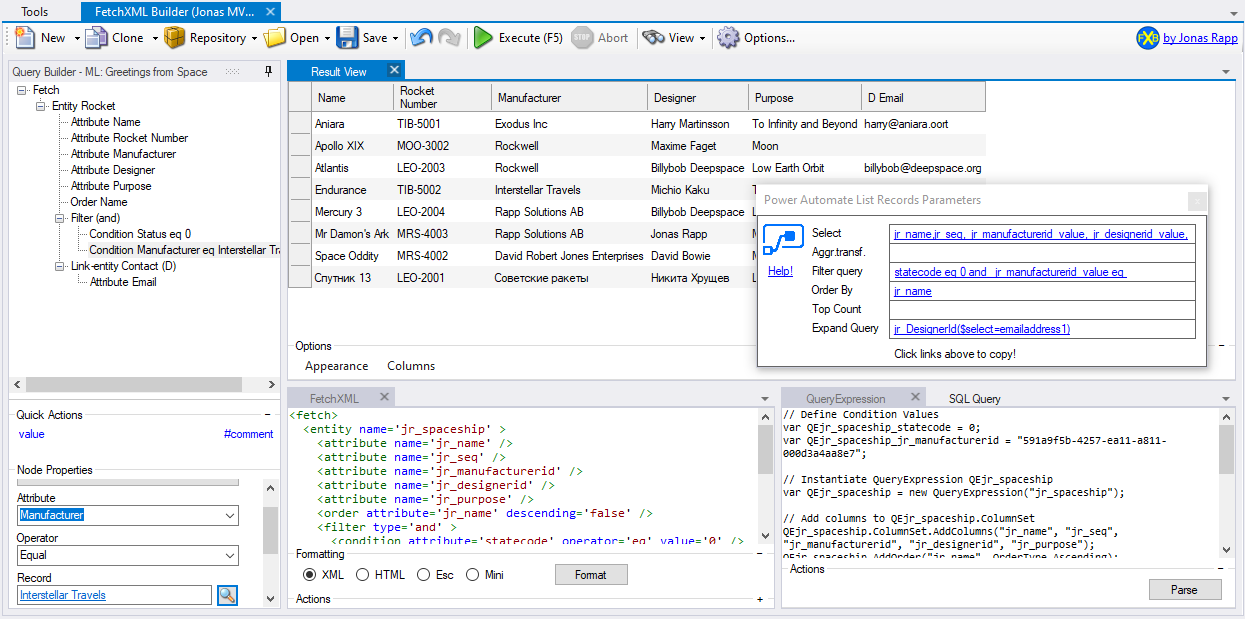
XrmToolBox is a Windows-based application that provides a collection of tools for working with Microsoft Dataverse and Dynamics 365. It’s widely used by developers, administrators, and consultants to simplify tasks such as querying data, managing metadata, and customizing environments.
To begin using XrmToolBox, follow these steps:
https://yourorg.crm4.dynamics.com).Once connected, you’ll have access to a wide range of plugins designed to streamline your work.
One of the most popular plugins is FetchXML Builder, which allows you to build and test FetchXML queries in a visual interface.
To install it:
FetchXML Builder makes it easy to create complex queries, preview results, and export them for use in Power Apps, Power Automate, or custom development.