Physical Address
304 North Cardinal St.
Dorchester Center, MA 02124
Physical Address
304 North Cardinal St.
Dorchester Center, MA 02124


If you build an Azure Function to do some logic, it could be possible you need some API permissions. Normaly you create an Azure appregistration with some API permissions and for the authentication you create a certificate or secret. But it is also possible to use your Azure Function as a managed identity. From this point you can give the managed identity these API permissions. Benefits are that when you remove the Azure Function, the managed identity is also removed. You dont have to manage 2 objects. See below how to implement an managed identity in an Azure Function.
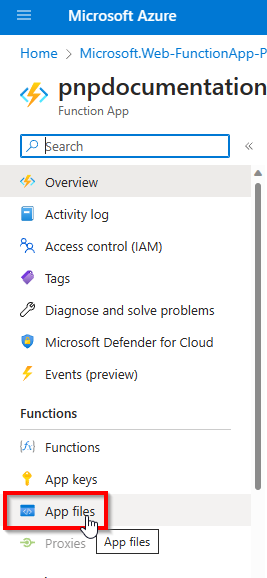
Go to your Azure Function
Click in the left menu on “App Files”
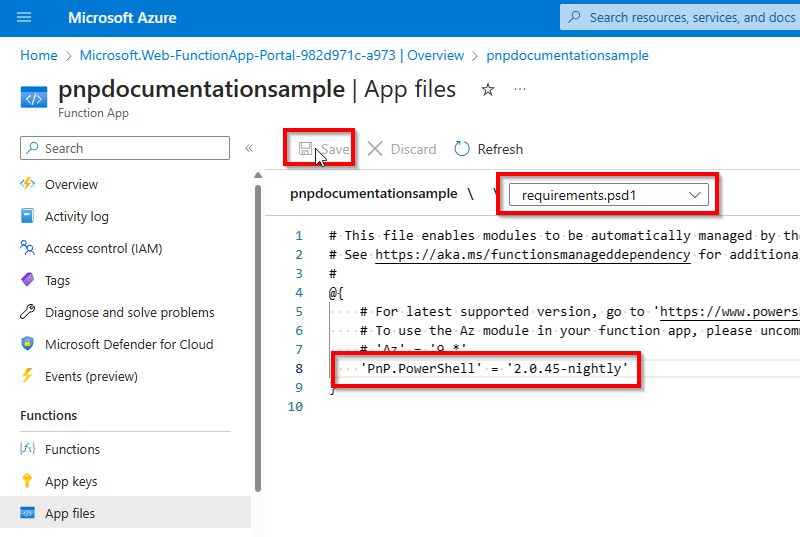
Select in the drop down “Requirements.psd1”

Here we can add the PowerShell modules which we need in our function. In my example I use an PowerShell Azure Function and would like to use the PnP PowerShell module.
@{
    'PnP.PowerShell' = '2.12.0'
}
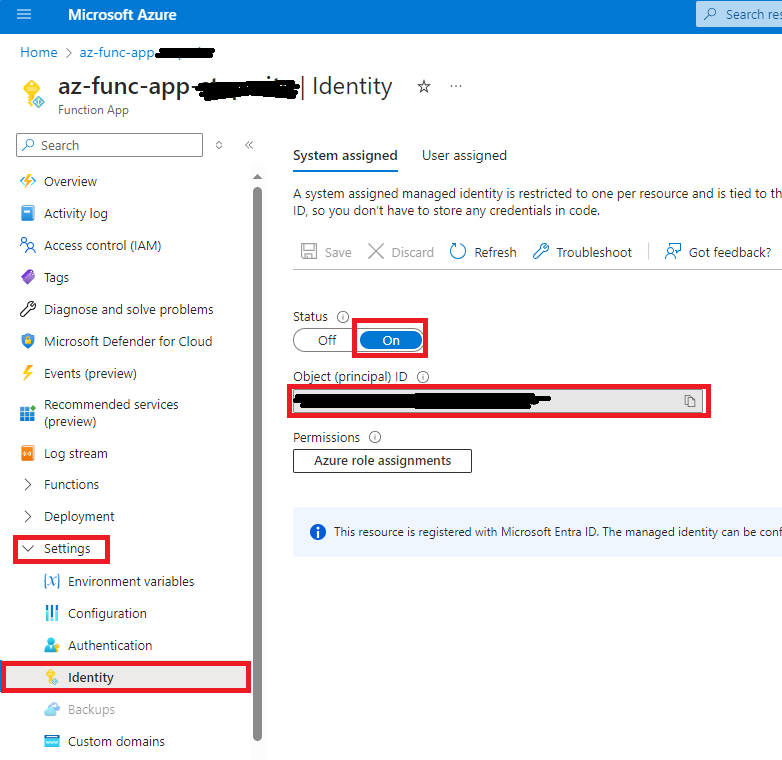
Click in your left menu on “Identity” under category “Settings”
Click on tab “System assigned” and enable this feature
Now you will see a GUID of your managed identity
Copy this managed identity
Go to Entra Id
Go to Enterprise Applications
Search on the guid in your clipboard
Go to in the left menu to “Permissions” in category “Security”

Here you see initial no API permissions
Run PowerShell commands below to add MS Graph API permissions
Connect-MgGraph -Scopes Application.Read.All, AppRoleAssignment.ReadWrite.All, RoleManagement.ReadWrite.Directory

$managedIdentityId = "someGUID" # objectId identityId, you can find it in the Enterprise application in Entra Id
$roleName = "AuditLog.Read.All" # this is just an example, you can use here any MS Graph API permission

$msgraph = Get-MgServicePrincipal -Filter "AppId eq '00000003-0000-0000-c000-000000000000'"
$role = $Msgraph.AppRoles| Where-Object {$_.Value -eq $roleName}

New-MgServicePrincipalAppRoleAssignment -ServicePrincipalId $managedIdentityId -PrincipalId $managedIdentityId -ResourceId $msgraph.Id -AppRoleId $role.Id

Disconnect-MgGraph
Run PowerShell command below to add SharePoint Online API permissions
$appId = "someGUID"  # objectId identityId, you can find it in the Enterprise application in Entra Id
Connect-PnPOnline "https://myCompany-admin.sharepoint.com" -Interactive

Add-PnPAzureADServicePrincipalAppRole -Principal $appId -AppRole "Sites.FullControl.All" -BuiltInType SharePointOnline

Add-PnPAzureADServicePrincipalAppRole -Principal $appId -AppRole "Sites.FullControl.All" -BuiltInType MicrosoftGraph Sites.Read.All